
제품 생산공정의 단위 설비 자동화및 표준화를 실시하고 각 구성요소를 연동하여 유연한 생산체제로 생산효율을 극대화 하도록 합니다.
windows Server 및 windows 11 OS를 지원 합니다.
1. .NET 8 or later (for .NET Core) 현재 net7.0-windows
    Server App/
    ├── 기본코드관리/
    │   ├── 알루미늄
    |   ├── style.css
    ├── img/
    |   ├── .jpg
    |   ├── .png
    ├── js/
    │   ├── main.js
    ├── lib/
    │   ├── animate/
    |   ├── counterup/
    |   ├── and more...
    ├── scss/
    │   ├── bootstrap/
    |   ├── bootstrap.scss
    ├── index-1.html
    ├── index-2.html
    ├── and more...
    Client App/
    ├── 기본코드관리/
    │   ├── 알루미늄
    |   ├── style.css
    ├── img/
    |   ├── .jpg
    |   ├── .png
    ├── js/
    │   ├── main.js
    ├── lib/
    │   ├── animate/
    |   ├── counterup/
    |   ├── and more...
    ├── scss/
    │   ├── bootstrap/
    |   ├── bootstrap.scss
    ├── index-1.html
    ├── index-2.html
    ├── and more...
All of the HTML files are located at "startup" folder (index-1.html, index-2.html, etc.). Every HTML file represents separate template page.
Visual Studio Code is an advised application for HTML files content editing, but you may also use any other suitable software.
In order to open HTML file with Visual Studio Code software, click on the file with right mouse button and select Open with > Visual Studio Code in the dropdown menu. After file opening you can edit it.
CSS files are used to change template appearance, i.e., fonts (font-family, size, font-face, etc.), color, background, width, etc. CSS files can be edited with Visual Studio Code software.
As previously stated, all site content is inserted to HTML files. You'll need minimal skills on orienting within code.
In order to replace “lipsum” (filling text) with your own one, please do the following:
1. Navigate to "startup" folder within template package.
2. Open index-1.html file with HTML editor.
3. You may use search function (CTRL+F) to check for required text.
4. Edit text with HTML editor. Save changes and open your file in browser to see them applied.
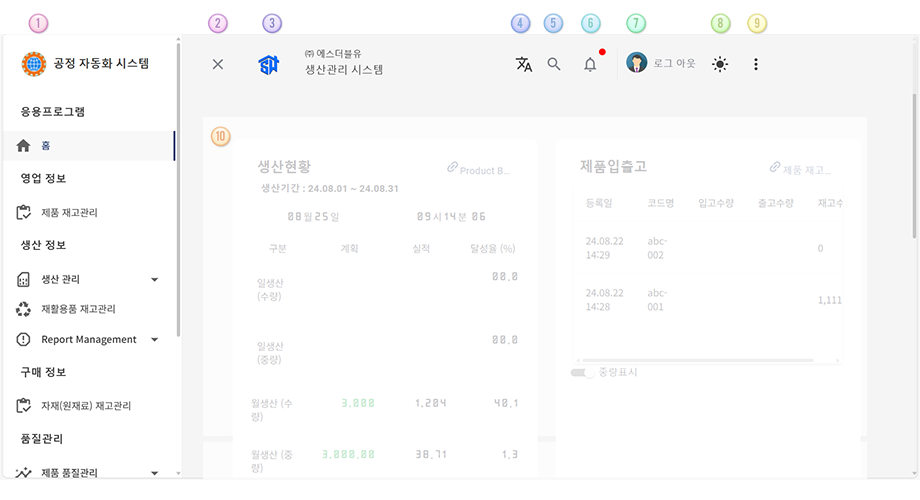
아래 이미지는 공정자동화 시스템앱 메인화면을 보여 줍니다. 사용자 권한에 따라 표시 방법이 달라 지며 권한이 없는 항목을 클릭 할 경우 오류를 표시하게 됩니다.
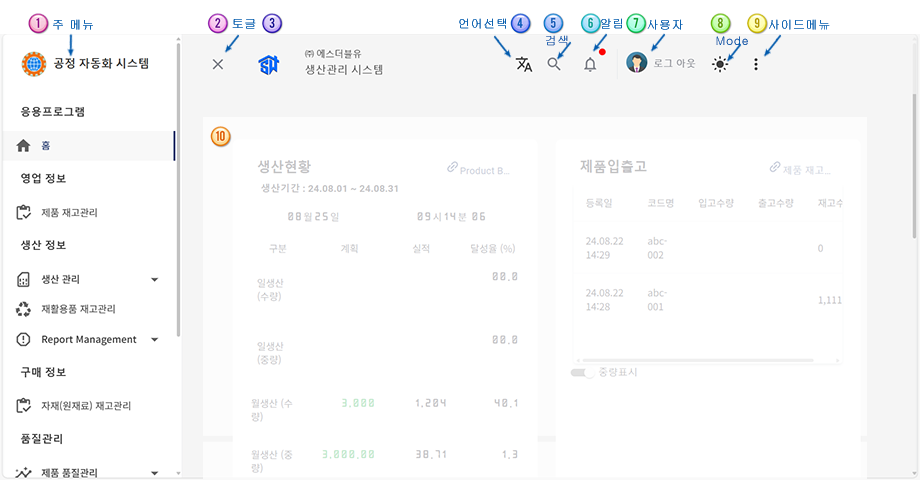
왼쪽사이드메뉴를 숨시거나 보여 줍니다
회사 로고및 내용 변경은 관리자(권한)가 수정 할 수 있습니다.
회사 로고및 내용 변경은 관리자(권한)가 수정 할 수 있습니다.
회사 로고및 내용 변경은 관리자(권한)가 수정 할 수 있습니다.
회사 로고및 내용 변경은 관리자(권한)가 수정 할 수 있습니다.
Second way is to upload custom images specifying your own filenames and extensions.
Next you'll also need to change image filename in HTML file. Please do the following:
1. Open HTML file within startup folder by using HTML editor for this purpose.
2. Use search function (CTRL+F) to locate an image in HTML file.
3. Edit image filename and extension. Save changes and open your file in browser to see them applied.
Startup comes with a fully working and functional Contact Form with Ajax & PHP.
To make the Contact Form working, simply go to "mail" folder and open "contact-form.php" file with a text editor. Look out for "info@example.com", replace your email with this and save the file.
Note: Our Contact Form is compatible with PHP 5.5 and later, including PHP 8.0
Documentation for purpose, including global settings, headings, body text, lists, and more.
All HTML headings, h1 through h6, are available.
When you need a heading to stand out, consider using a display heading — a larger, slightly more opinionated heading style.
Styling for common inline HTML5 elements.
This is a paragraph. Magna lorem justo ea dolore nonumy, vero at et sea lorem. Amet eirmod rebum dolores elitr kasd diam elitr tempor sit. Nonumy dolores dolores accusam ut vero sed dolore ipsum magna, consetetur eirmod amet magna clita amet consetetur eirmod est, et elitr eirmod ea rebum clita consetetur dolore. Ut et sed eos amet lorem et elitr. Ipsum voluptua ea nonumy dolor sadipscing ipsum rebum amet, dolor takimata ut elitr gubergren est ipsum eirmod, rebum diam lorem et elitr magna dolores ipsum sed. Sanctus diam aliquyam diam sed diam nonumy takimata. Sadipscing dolore accusam eirmod erat et. Dolore lorem lorem sit.
This is a lead paragraph. It stands out from regular paragraphs.
You can use the mark tag to highlight text.
This line of text is meant to be treated as deleted text.
This line of text is meant to be treated as no longer accurate.
This line of text is meant to be treated as an addition to the document.
This line of text will render as underlined.
This line of text is meant to be treated as fine print.
This line rendered as bold text.
This line rendered as italicized text.
A well-known quote, contained in a blockquote element.
앱에서 사용하는 기초적인 정보를 등록 관리 합니다
여러 모듈(프로그램)에서 사용하는 분류 코드에 대하여 추가 입력및 수정합니다
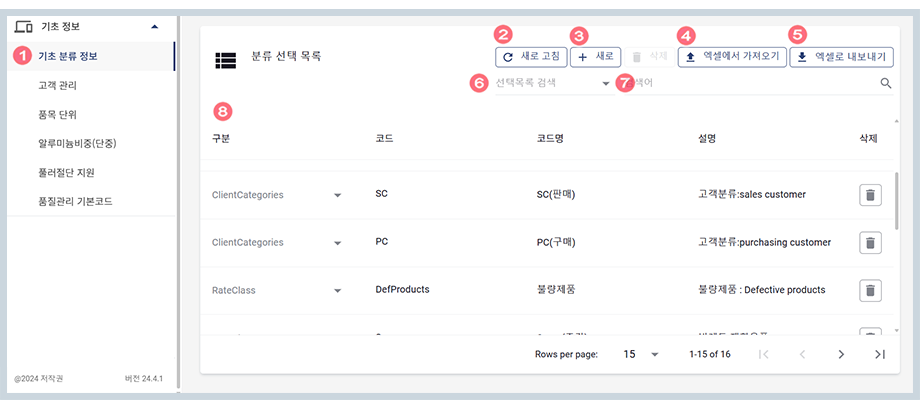
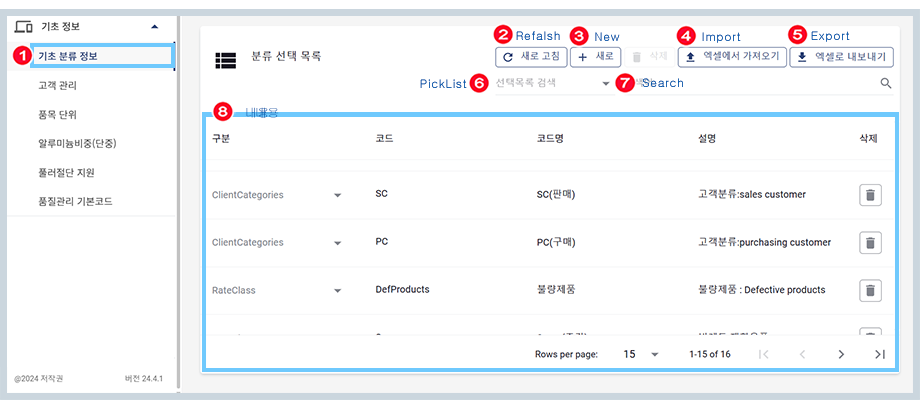
사이드메뉴에서 클릭하게되면 위 그림과 같이 분류선택 목록 화면이 표시 됩니다.
데이터를 리로드 합니다.
데이터 추가 화면이 표시 됩니다
엑셀파일로부터 데이터를 가저옵니다
엑셀파일로 데이터를 내보냅니다
선택목록 분류항목을 선택하여 내용을 표시 합니다.
등록내용의 키워드로 검색 합니다
현재 등록된 내용을 표시해 줍니다.
납품업체및 구매업체 기초(코드)정보를 관리 합니다,
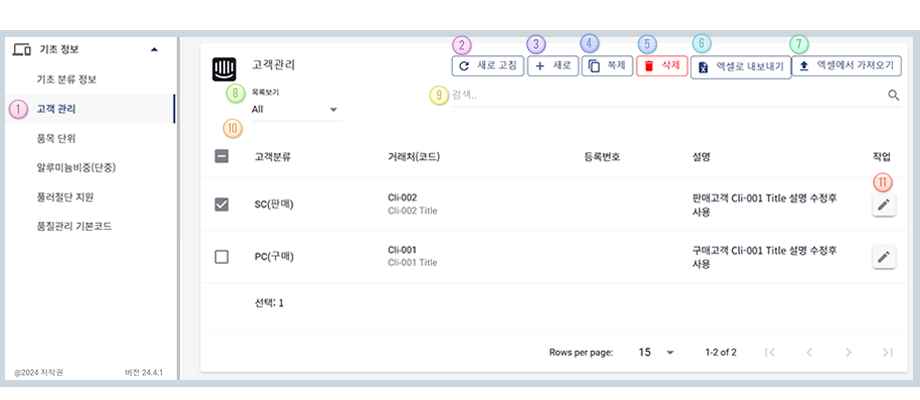
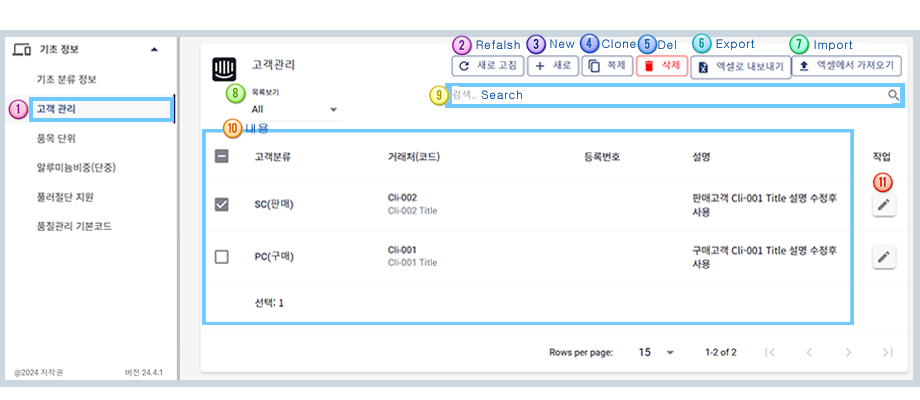
사이드메뉴에서 클릭하게되면 위 그림과 같이 고객관리 화면이 표시 됩니다.
데이터를 리로드 합니다.
데이터 추가 화면이 표시 됩니다
내용중 복제할 행을 선택후 복제 버튼을 클릭합니다.
내용중 삭제할 여러행을 선택후 삭제 버튼을 클릭합니다.
엑셀파일로 데이터를 내보냅니다
엑셀파일로부터 데이터를 가저옵니다
항목을 선택하여 내용을 표시 합니다.
등록내용의 키워드로 검색 합니다
현재 등록된 내용을 표시해 줍니다.
클릭하여 수정 또는 삭제 합니다
여러 모듈(프로그램)에서 사용하는 품목 단위 코드에 대하여 추가 입력및 수정합니다
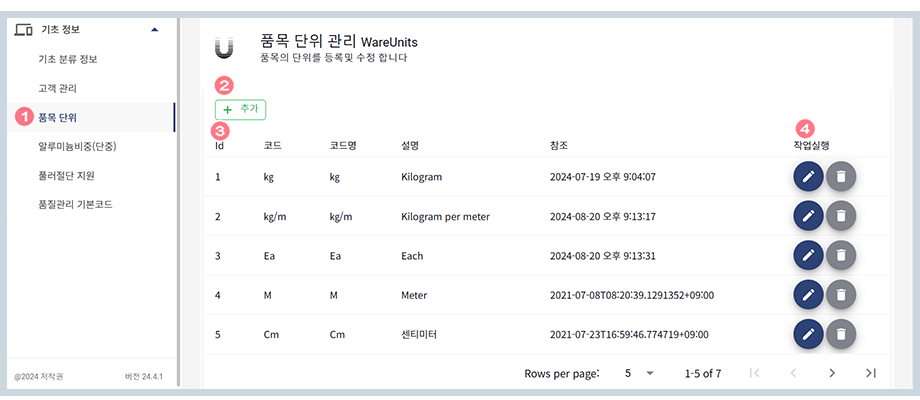
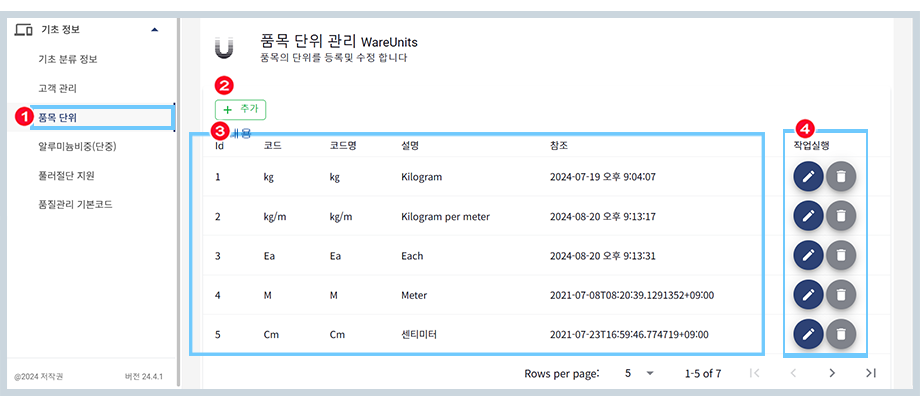
사이드메뉴에서 클릭하게되면 위 그림과 같이 품목 단위 화면이 표시 됩니다.
데이터 추가 화면이 표시 됩니다
현재 등록된 내용을 표시해 줍니다.
데이터를 수정삭제 합니다
여러 모듈(프로그램)에서 사용하는 알루미늄 비중 코드에 대하여 추가 입력및 수정합니다
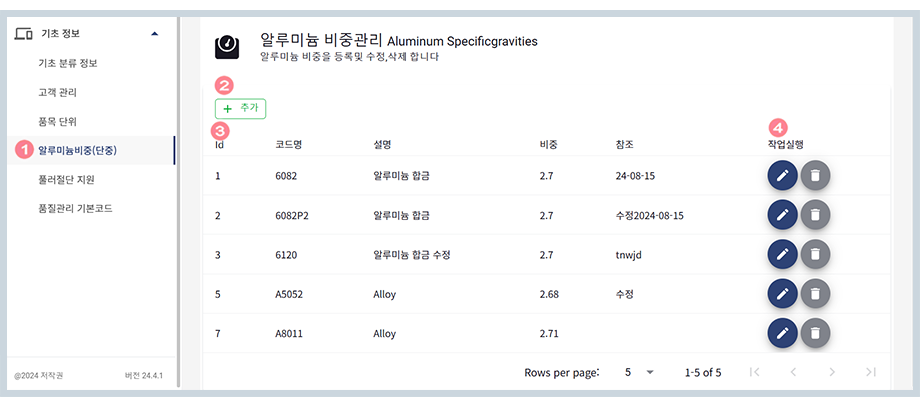
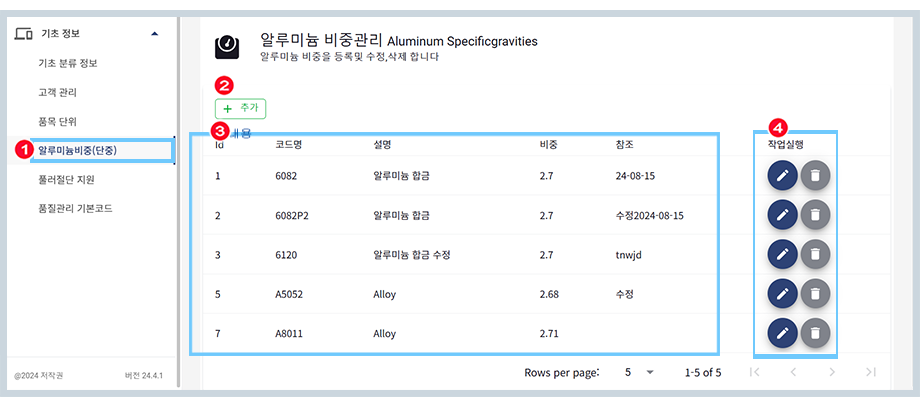
사이드메뉴에서 클릭하게되면 위 그림과 같이알루미늄 비중 화면이 표시 됩니다.
데이터 추가 화면이 표시 됩니다
현재 등록된 내용을 표시해 줍니다.
데이터를 수정삭제 합니다
여러 모듈(프로그램)에서 사용하는 풀러절단지원 코드에 대하여 추가 입력및 수정합니다
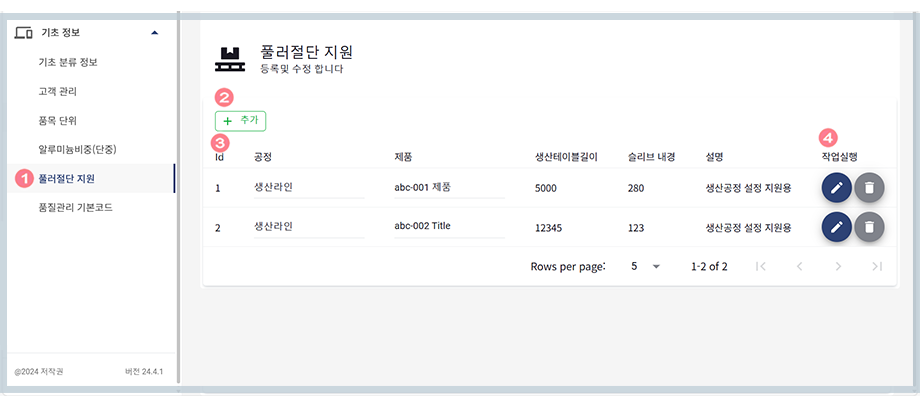
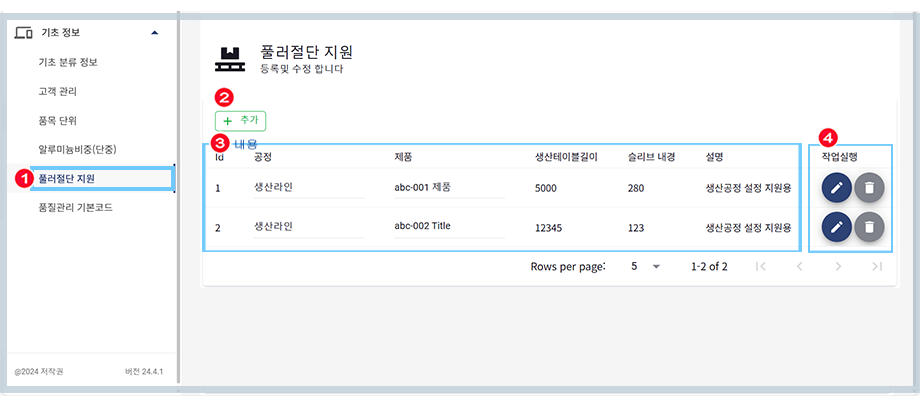
사이드메뉴에서 클릭하게되면 위 그림과 같이 풀러절단 지원 화면이 표시 됩니다.
데이터 추가 화면이 표시 됩니다
현재 등록된 내용을 표시해 줍니다.
데이터를 수정삭제 합니다
여러 모듈(프로그램)에서 사용하는 풀러절단지원 코드에 대하여 추가 입력및 수정합니다
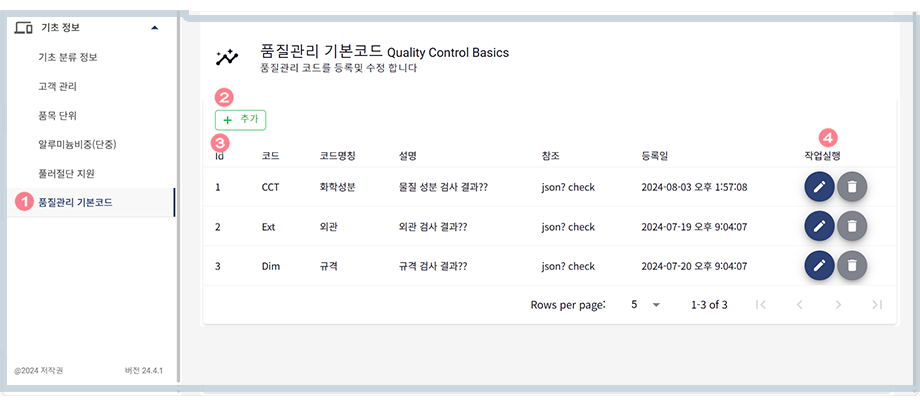
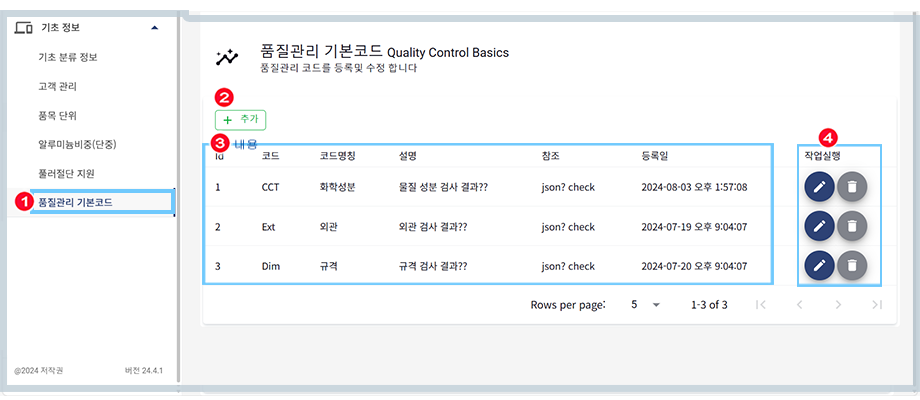
사이드메뉴에서 클릭하게되면 위 그림과 같이 풀러절단 지원 화면이 표시 됩니다.
데이터 추가 화면이 표시 됩니다
현재 등록된 내용을 표시해 줍니다.
데이터를 수정삭제 합니다
앱에서 사용하는 생산관련 기본 정보를 등록 관리 합니다
납품업체및 구매업체 기초(코드)정보를 관리 합니다,
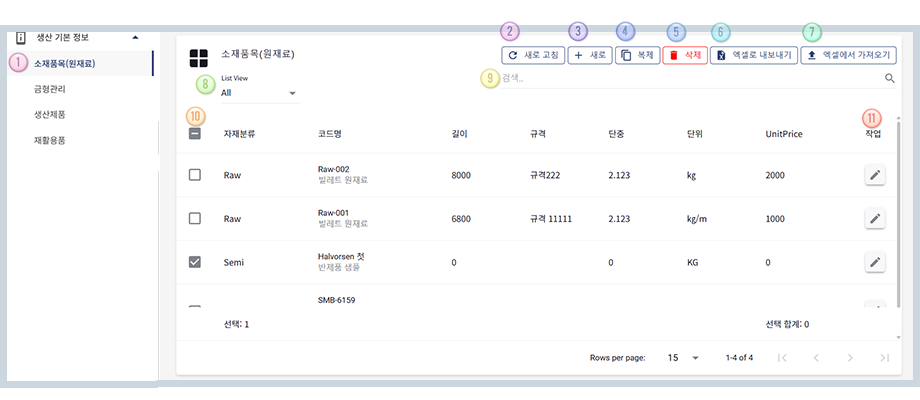
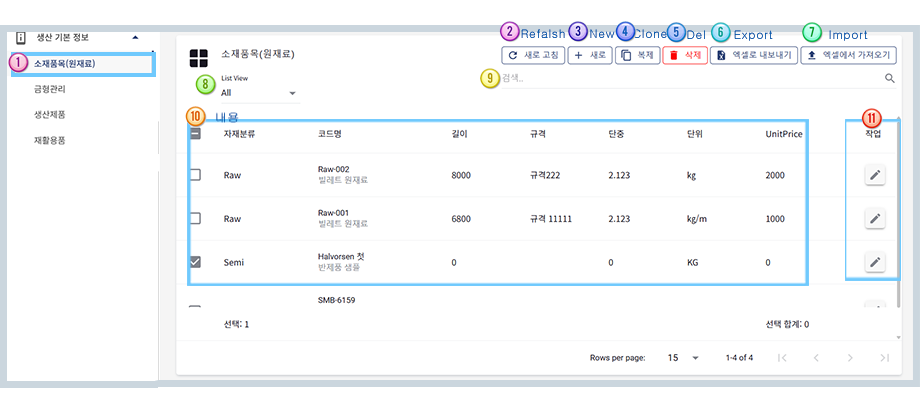
사이드메뉴에서 클릭하게되면 위 그림과 같이 고객관리 화면이 표시 됩니다.
데이터를 리로드 합니다.
데이터 추가 화면이 표시 됩니다
내용중 복제할 행을 선택후 복제 버튼을 클릭합니다.
내용중 삭제할 여러행을 선택후 삭제 버튼을 클릭합니다.
엑셀파일로 데이터를 내보냅니다
엑셀파일로부터 데이터를 가저옵니다
항목을 선택하여 내용을 표시 합니다.
등록내용의 키워드로 검색 합니다
현재 등록된 내용을 표시해 줍니다.
금형 기본정보를 입력및 수정 합니다,
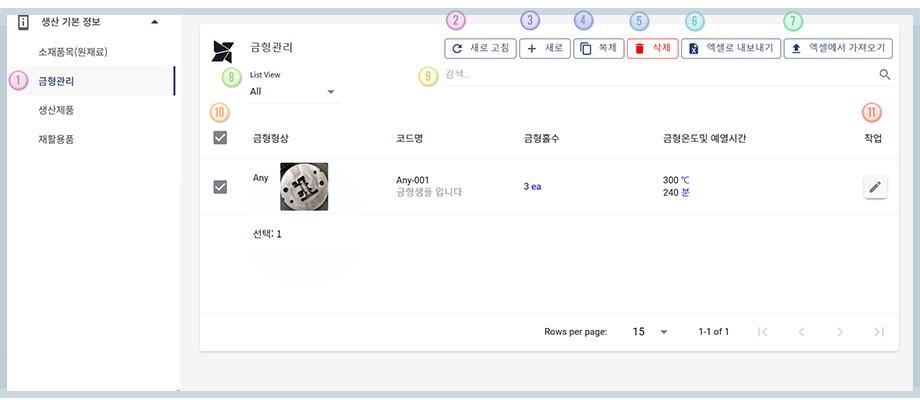
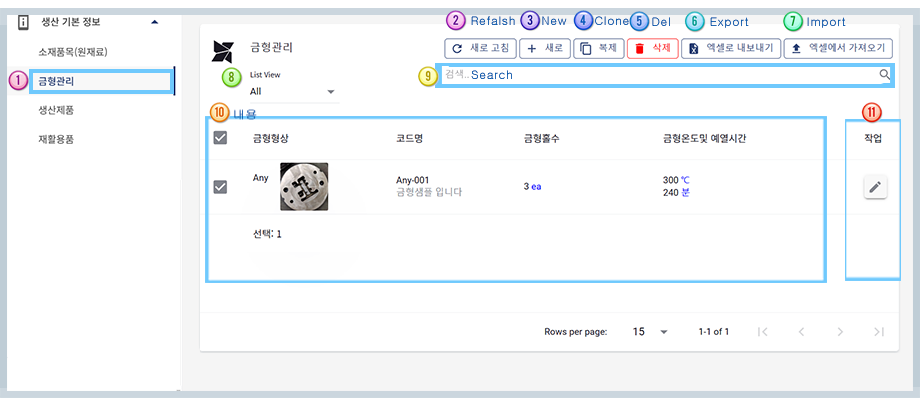
사이드메뉴에서 클릭하게되면 위 그림과 같이 금형관리 화면이 표시 됩니다.
데이터를 리로드 합니다.
데이터 추가 화면이 표시 됩니다
내용중 복제할 행을 선택후 복제 버튼을 클릭합니다.
내용중 삭제할 여러행을 선택후 삭제 버튼을 클릭합니다.
엑셀파일로 데이터를 내보냅니다
엑셀파일로부터 데이터를 가저옵니다
항목을 선택하여 내용을 표시 합니다.
등록내용의 키워드로 검색 합니다
현재 등록된 내용을 표시해 줍니다.
생산제품 정보를 등록및 수정 합니다,
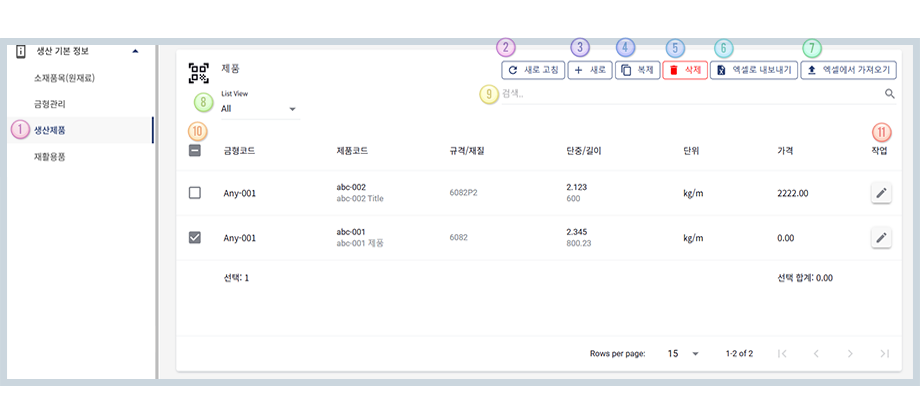
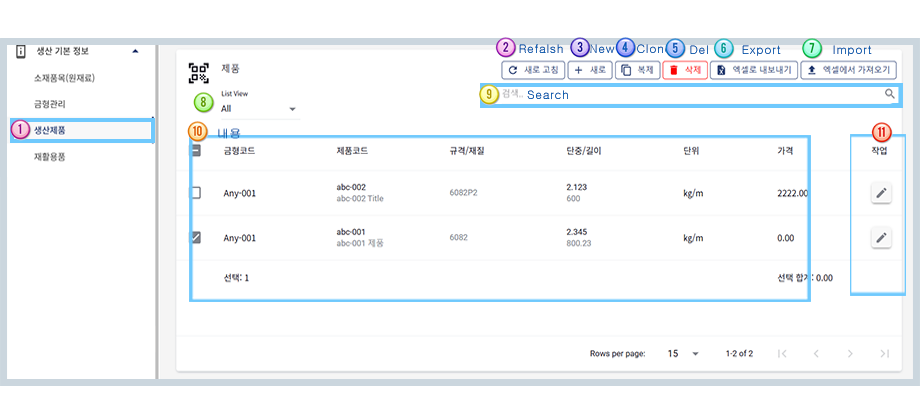
사이드메뉴에서 클릭하게되면 위 그림과 같이 생산제품 화면이 표시 됩니다.
데이터를 리로드 합니다.
데이터 추가 화면이 표시 됩니다
내용중 복제할 행을 선택후 복제 버튼을 클릭합니다.
내용중 삭제할 여러행을 선택후 삭제 버튼을 클릭합니다.
엑셀파일로 데이터를 내보냅니다
엑셀파일로부터 데이터를 가저옵니다
항목을 선택하여 내용을 표시 합니다.
등록내용의 키워드로 검색 합니다
현재 등록된 내용을 표시해 줍니다.
소속(부서/공정) 정보를 등록 수정 합니다,
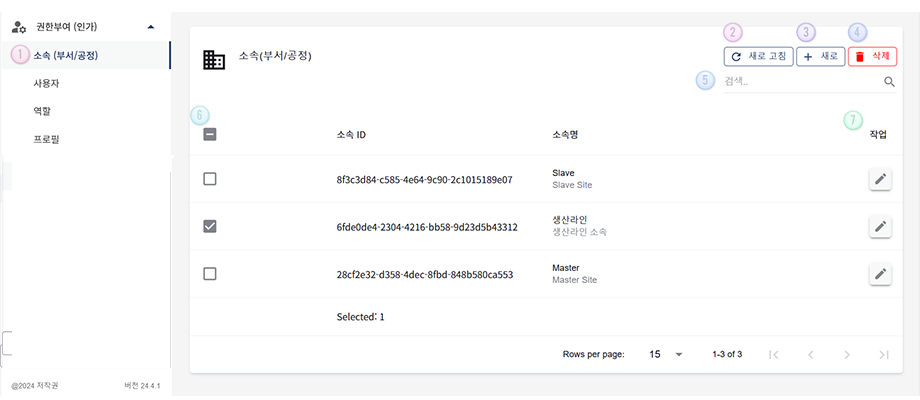
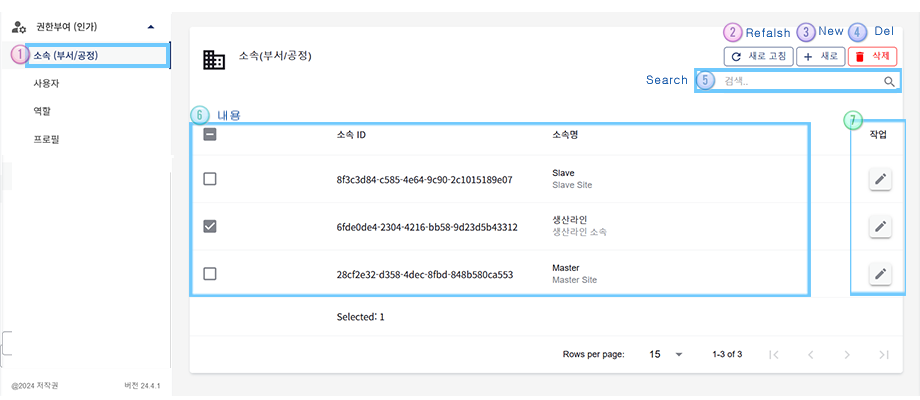
사이드메뉴에서 클릭하게되면 위 그림과 같이 소속(부서/공정) 화면이 표시 됩니다.
데이터를 리로드 합니다.
데이터 추가 화면이 표시 됩니다
내용중 삭제할 여러행을 선택후 삭제 버튼을 클릭합니다.
등록내용의 키워드로 검색 합니다
현재 등록된 내용을 표시해 줍니다.
사용자 정보를 등록 수정 합니다,
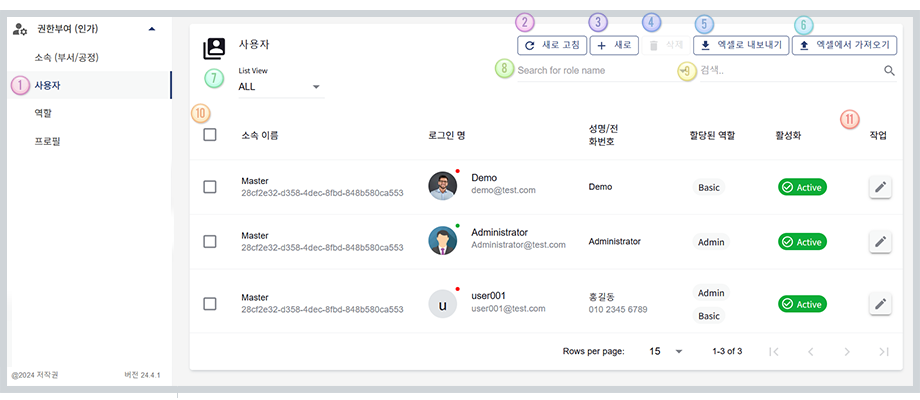
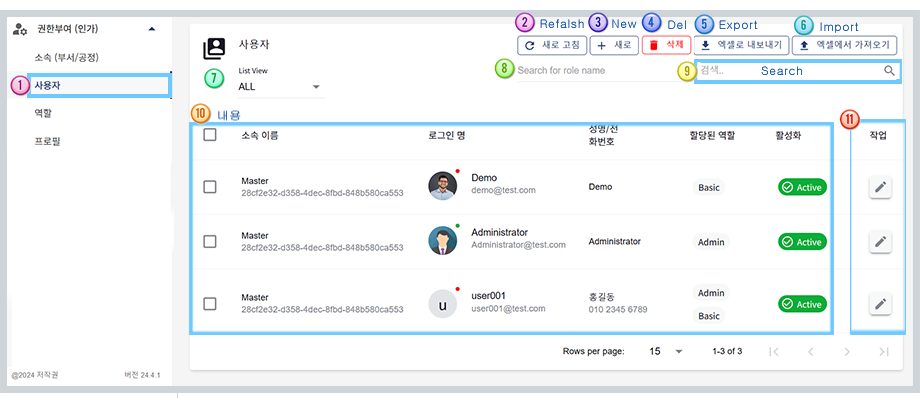
사이드메뉴에서 클릭하게되면 위 그림과 같이 사용자 화면이 표시 됩니다.
데이터를 리로드 합니다.
데이터 추가 화면이 표시 됩니다
내용중 복제할 행을 선택후 복제 버튼을 클릭합니다.
내용중 삭제할 여러행을 선택후 삭제 버튼을 클릭합니다.
엑셀파일로 데이터를 내보냅니다
엑셀파일로부터 데이터를 가저옵니다
항목을 선택하여 내용을 표시 합니다.
등록내용의 키워드로 검색 합니다
현재 등록된 내용을 표시해 줍니다.
역할 정보를 등록 수정 합니다,
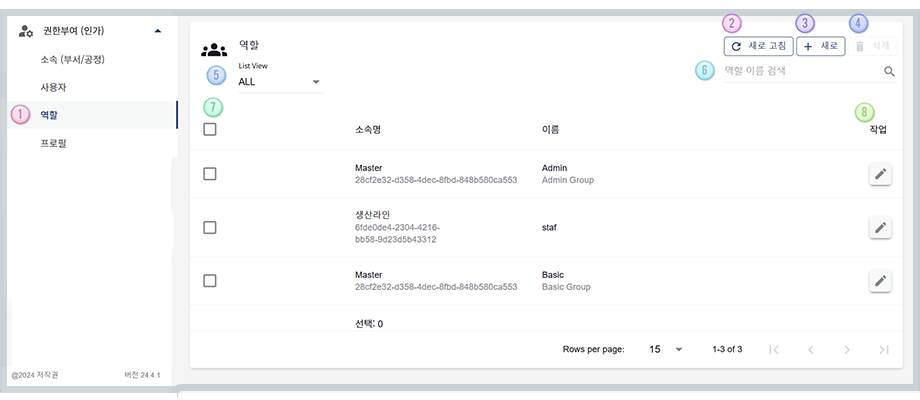
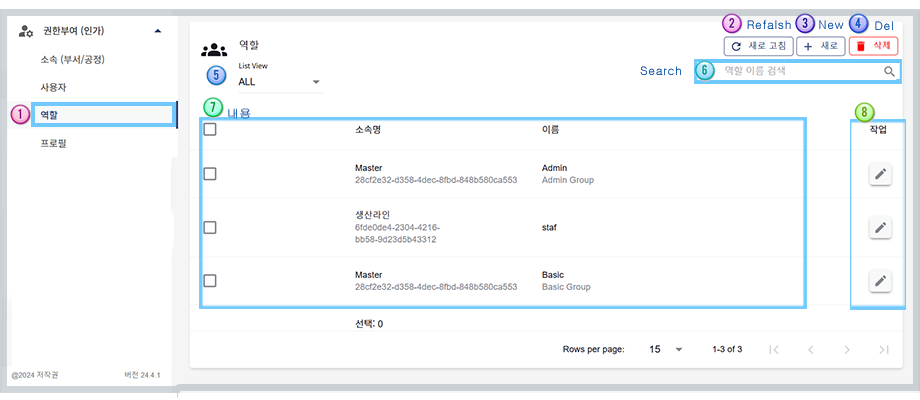
사이드메뉴에서 클릭하게되면 위 그림과 같이 역할 화면이 표시 됩니다.
데이터를 리로드 합니다.
데이터 추가 화면이 표시 됩니다
내용중 삭제할 여러행을 선택후 삭제 버튼을 클릭합니다.
등록내용의 키워드로 검색 합니다
현재 등록된 내용을 표시해 줍니다.
역할 정보를 등록 수정 합니다,
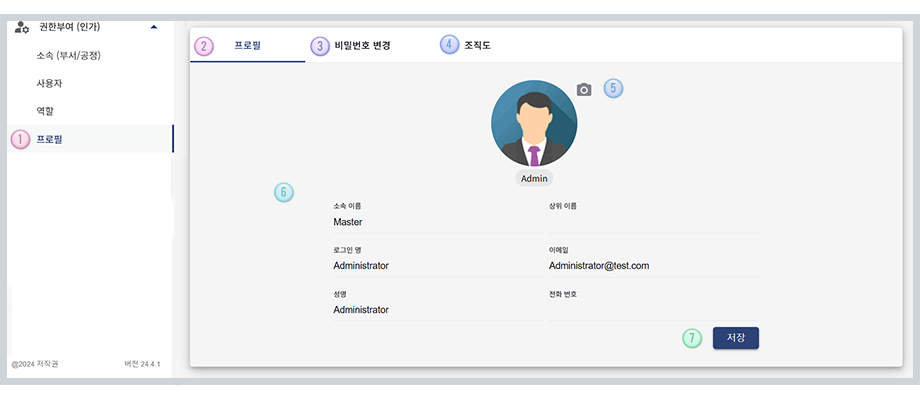
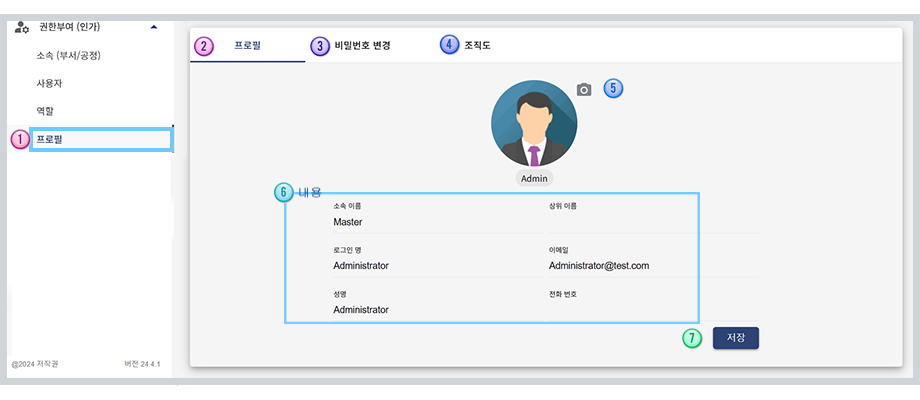
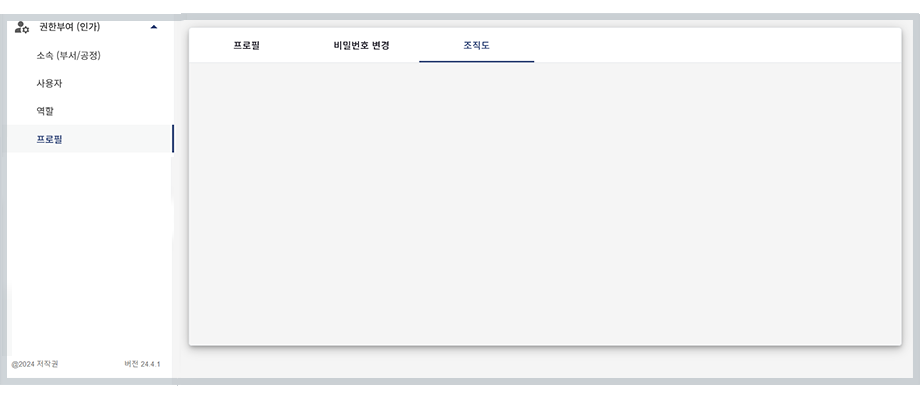
사이드메뉴에서 클릭하게되면 위 그림과 같이 프로필 화면이 표시 됩니다.
클릭하게 되면 위 그림의 첫 탭을 표시 합니다.
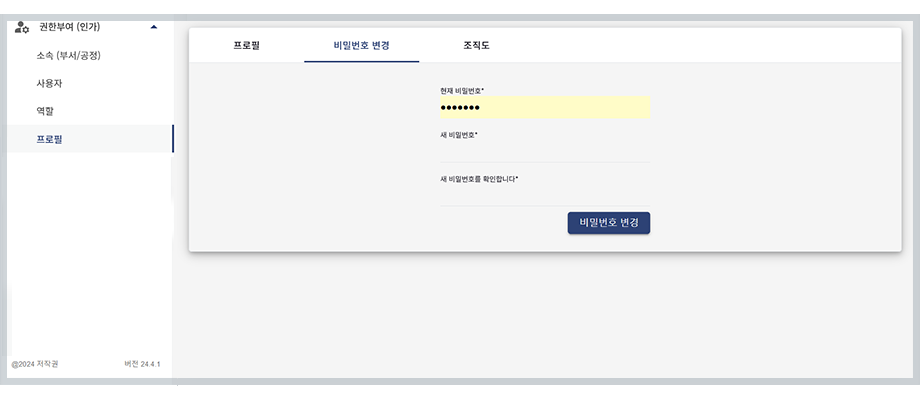
아바타 사진을 업로드 합니다
현재 등록된 내용을 표시해 줍니다.
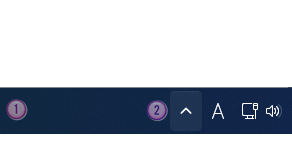
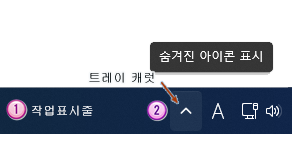
ePasMonitorApp 을 구동하게 되면
사이드메뉴에서 클릭하게되면 위 그림과 같이 금형관리 화면이 표시 됩니다.
시스템 트레이에서 캐럿 버튼을 클릭하여
현재 등록된 내용을 표시해 줍니다.
ePasMonitorApp 을 구동하게 되면
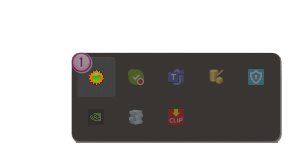
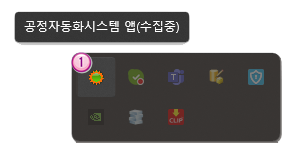
사이드메뉴에서 클릭하게되면 위 그림과 같이 금형관리 화면이 표시 됩니다.
현재 등록된 내용을 표시해 줍니다.
ePasMonitorApp 을 구동하게 되면
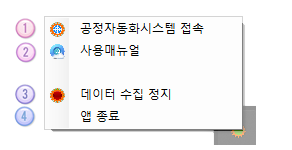
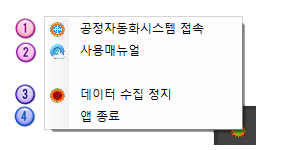
사이드메뉴에서 클릭하게되면 위 그림과 같이 금형관리 화면이 표시 됩니다.
현재 등록된 내용을 표시해 줍니다.
You can run HTML file directly from Startup folder, but it won't let you explore all template functionality. You should upload all the content of "startup" folder from your local computer to your hosting server in order to display a fully working website and make your site "live".
For files uploading to your hosting server FTP manager will be needed, like Total Commander, FileZilla, CuteFTP, etc.
In case you have existing server already, please check if it meets all the requirements. For most templates PHP 5.4+ version is the only one required.
Your website root depends on the directory structure on your hosting server. If you upload the "startup" folder itself into your server, the root to your website will be "http://your_domain_name/startup". To avoid this and make the website root "http://your_domain_name/" please open the "startup" folder and upload the folder content.
(주)씨엔에이시스템
대표전화: 031-310-8931 기술팀: 031-8042-3890
cna@cnasystem.com